
Enabling Incremental Reconciliation from Azure AD to OIM: Step-by-Step Guide
Published May 15, 2023
Insight summary and table of contents
Summary
Contents
What is Incremental Reconciliation?
The incremental reconciliation is a concept in IDM demography were during the reconciliation of data from a source, only the delta is picked by OIM connector which has been changed after last reconciliation timestamp.
So, let us say that if the reconciliation from Azure to OIM has been triggered on 10th Oct,2022 at 2:00pm PST and next scheduled run of reconciliation is on 14th Oct,2022 at 2:00 pm PST, then, the data which has been modified/changed after 2:00pm PST 10th Oct,2022 will be picked up by the connector and will be reconciled in OIM.
Therefore, in this article, you will know on how to enable this functionality of delta reconciliation from Azure AD to OIM.
Pre-Requisites
The OIG 12c – Azure AD connector should be installed in respective OIM instance as Trusted Source through AoB/Application Onboarding approach. Refer then below screenshot.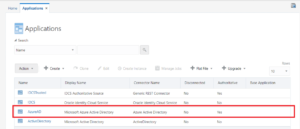
The Scheduled Task named as: AzureAD AzureAD User Trusted Reconciliation should be present in respective environment of OIG.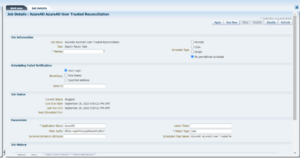
Enabling Incremental Reconciliation for Azure AD Trusted Source in OIG
1. Login to Identity – Self Service Console using XELSYSADM user.
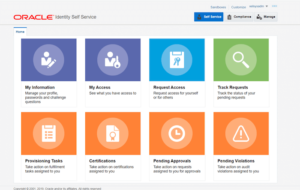
2. Navigate to Manage Tab. Click on Manage.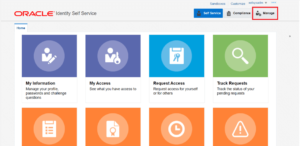
3. You will get below page.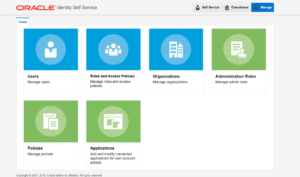
4. Click on Applications tile.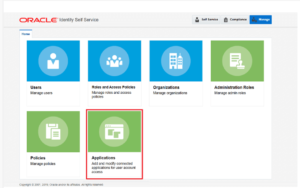
5. Below page will be rendered.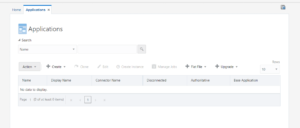
6. Perform the blank search on this page by clicking on “Search” button.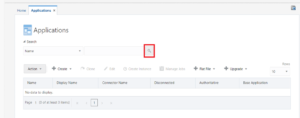
7. Results will be displayed as shown in below screenshot. Note that search result will differ as per your OIG environment and list of connectors you have installed through Aob approach.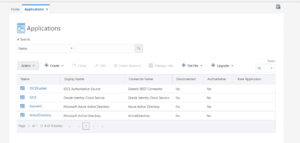
8. Look for AzureAD connector installation which is configured as Trusted source.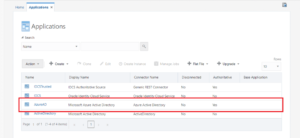
9. Select the Connector and click on Edit.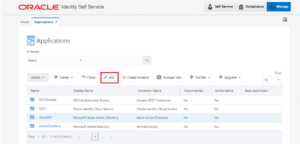
10. Below page will be rendered.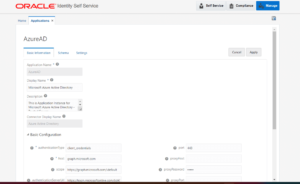
11. Scroll down till you see the Advanced Settings section.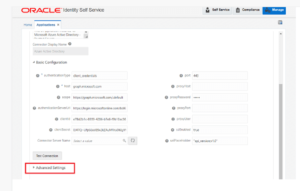
12. Expand the Advanced Settings section.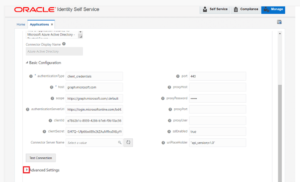
13. Below page will be rendered.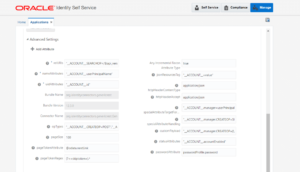
14. Search for “relURLs” configuration.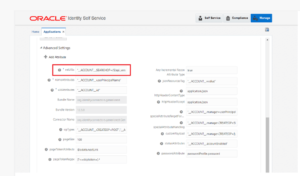
15. The existing relURLs configuration will be as follows.
New relURLs configuration
“ACCOUNT.SEARCHOP=/$(api_version)$/users?$(Filter Suffix)$&$select=displayName,givenName,userType,mailNickname,userPrincipalName,id,preferredLanguage,usageLocation,accountEnabled,surname,country, onPremisesLastSyncDateTime&$top=$(PAGE_SIZE)$&$skiptoken=$(PAGE_TOKEN)$”,”ACCOUNT.manager.SEARCHOP=/$(api_version)$/users/$(UID)$/manager”,”ACCOUNT.manager=/$(api_version)$/users/$(UID)$/manager/$ref”
16. Change the relURLs to below value.
Existing relURLs configuration
“ACCOUNT.SEARCHOP=/$(api_version)$/users?$(Filter Suffix)$&$select=displayName,givenName,userType,mailNickname,userPrincipalName,id,preferredLanguage,usageLocation,accountEnabled,surname,country&$top=$(PAGE_SIZE)$&$skiptoken=$(PAGE_TOKEN)$”,”ACCOUNT.manager.SEARCHOP=/$(api_version)$/users/$(UID)$/manager”,”ACCOUNT.manager=/$(api_version)$/users/$(UID)$/manager/$ref”
17. Update the configuration in relURLs parameter of Advanced Settings.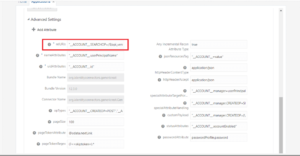
18. Once updated, scroll up and click on Apply.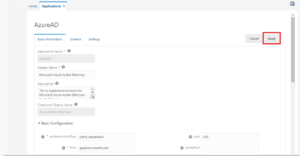
19. You will get below message.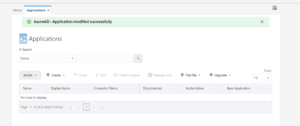
20. Then, login to OIG – System Admin Console.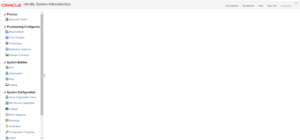
21. Click on Scheduler.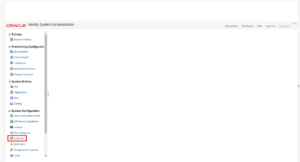
22. Below popup will be rendered.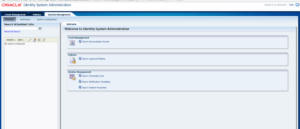
23. Search for Scheduler named using search string as: *AzureAD*.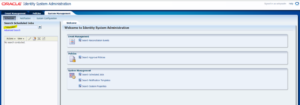
24. Click on Search button.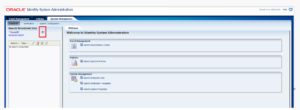
25. You will get below results.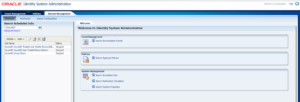
26. Click on Scheduler named as : AzureAD AzureAD User Trusted Reconciliation.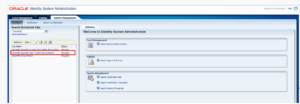
27. The scheduled task will be opened.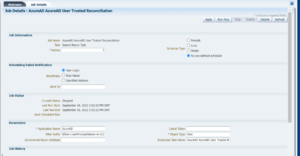
28. Enter the Incremental Recon Attribute as: onPremisesLastSyncDateTime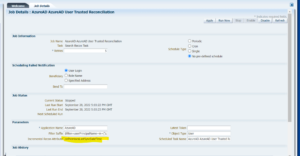
29: Apply the changes.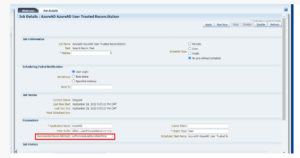
30: Apply the changes.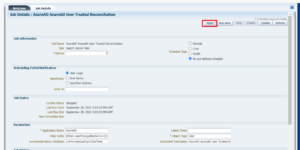
31. The changes will be applied successfully and Incremental Recon Attribute will be updated successfully in scheduled task.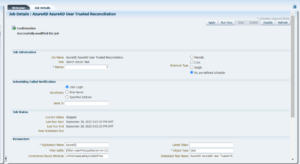
Known Issues
Issue # 1: Latest Token attribute is not getting updated after successful execution of Scheduled Task for Trusted Reconciliation.
Issue Details
There might be case where even after successful execution of scheduled task for trusted reconciliation of user and providing the Incremental Recon attribute name, the latest token attribute is not getting updated in Scheduled Task Parameter. Refer the below screenshot.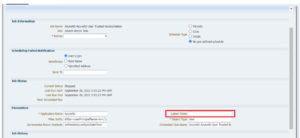
Resolution:
- Validate with Azure AD team and ask them, to enable the onPremisesLastSyncDateTime attribute.
- Also, in the relURL, the onPremisesLastSyncDateTime should be present. Therefore, when OIM makes the call with Azure AD graph APIs, the call will ask for onPremisesLastSyncDateTime attribute to be fetched from Azure AD to OIM.
Author: Rohit Wekhande, IDMWORKS, Sr AIM Consultant