
A Guide to Integrating Office 365 with Ping Identity
Published August 23, 2019
Insight summary and table of contents
Summary
Contents
Office 365 is a cloud-based subscription service that brings together the best tools for the way people work today. By combining best-in-class apps like Excel and Outlook with powerful cloud services like OneDrive and Microsoft Teams, Office 365 lets anyone create and share anywhere on any device.
Ping Identity provides secured seamless access to their SaaS, mobile, cloud and enterprise applications. Integrating Office 365 with PingFederate or PingOne acting as the identity provider is accomplished through the open standards WS-Federation and WS-Trust, which support both active and passive user profiles. Ping Identity is the only vendor to support all the identity standards, including WS-Federation and WS-Trust.
Prerequisites:
- Sign up for an Azure Active Directory account.
- Set up Active Directory (AD) and enable directory synchronization.
- Create a federated domain and prove ownership of it.
- Install and configure PingFederate 8.4 or higher.
- Replace the default self-signed SSL server certificate included with PingFederate with one that is signed by a public Certificate Authority (CA). This enables Azure Active Directory to establish a trusted SSL session with PingFederate.
Steps:
1. Configure an LDAP connection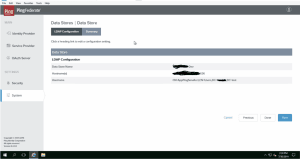
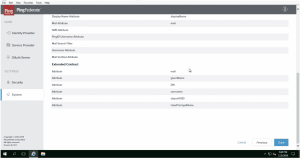
2. Create a Password Credential Validator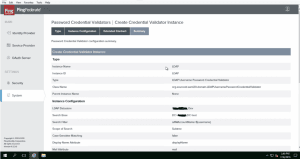
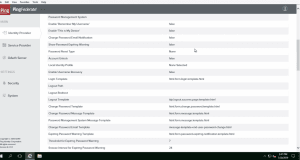
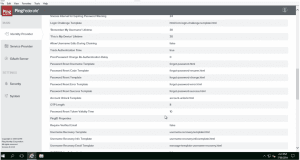
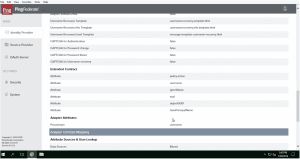
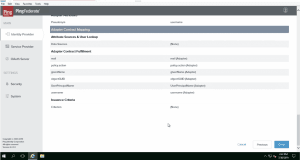
3. Create an IDP Adapter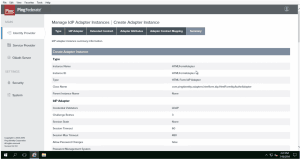
4. Ensure WS-FEDERATION and WS-TRUST are selected under Systems–>Protocols tab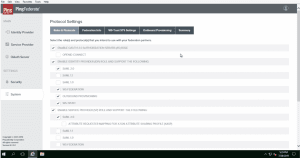
5. Create Token Processor under Identity Provider–>Token Processors tab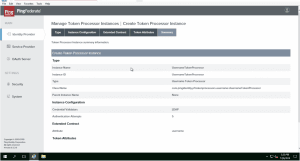
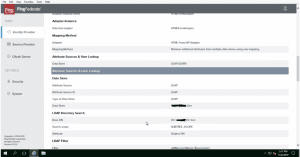
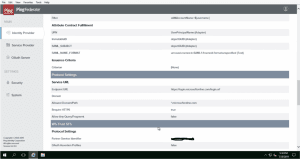
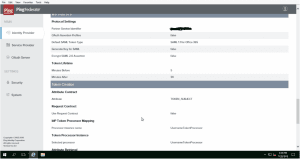
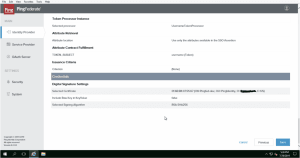
6. Configure a SP connection under Identity Provider–>SP connections–>Create New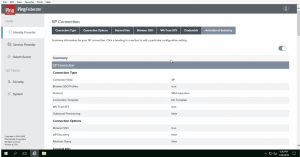
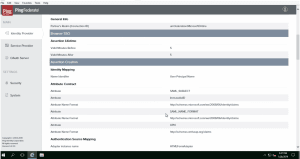
7. Add UPN (UserPrincipalName) to the user account
Reference: https://petri.com/add-upn-suffixes-in-active-directory
Log in to Windows Server with a domain administrator account.
Select Active Directory Domains and Trusts from the Tools menu.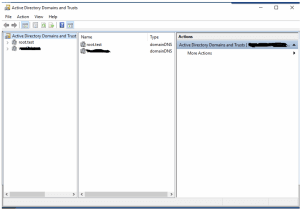
In the Active Directory Domains and Trusts management console, right-click Active Directory Domains and Trusts in the left pane and select Properties from the menu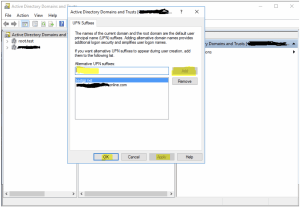
In the dialog box on the UPN Suffixes tab, type the name of the suffix that you would like to add to your AD forest in the Alternate UPN suffixes box. Click Add and then OK.
Open the Active Directory Users and Computers. Select the user account you want to change.
Double click the user account.
Select the Account tab.
Click the down arrow in the section of User logon name.
Select the UPN you want.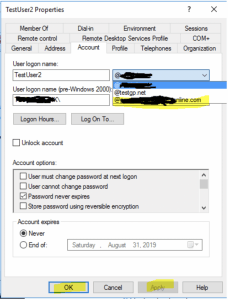
Click Apply
Click OK
8. Make the Managed Domain Federated
Connect-MsolService
Enter the Office 365 account with Global Admins Permission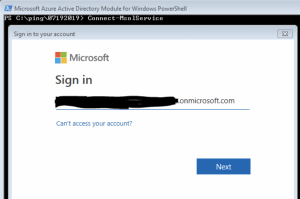
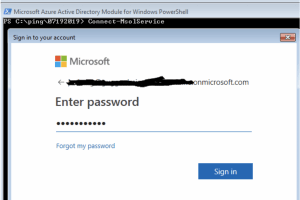
Run the file ping.ps1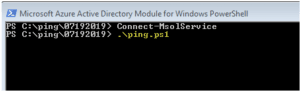
The ping.ps1 is the following
$certFile = “C:PING7192019pf-signing.crt”
$cert = [IO.File]::ReadAllText($certFile)
$cert = $cert.replace(“—–BEGIN CERTIFICATE—–“,””)
$cert = $cert.replace(“—–END CERTIFICATE—–“,””)
$cert = $cert.replace(“`r”,””)
$cert = $cert.replace(“`n”,””)
$domainName = “xxxxxxxxxxxxxonline.com”
$hostName = “xxxxxxxxxxxxxxxxxxxxxxxx”
$port = 9031
$pingfederate = “https://${hostName}:$port”
$brandName = “xxxxxxxxxxxxxxxxxx”
$issuer = “https://xxxxxxxxxxxxxxxxxxx:9031”
$spId = “urn:federation:MicrosoftOnline”
$activeLogOn = “$pingfederate/idp/sts.wst”
$logOff = “$pingfederate/idp/prp.wsf”
$metaData = “$pingfederate/pf/sts_mex.ping?PartnerSpId=$spId”
$passiveLogOnPF=”$pingfederate/idp/prp.wsf”
Set-MsolDomainAuthentication -Authentication Federated -DomainName “$domainName” -ActiveLogOnUri “$activeLogOn” -FederationBrandName “$brandName” -IssuerUri “$issuer” -LogOffUri “$logOff” -MetadataExchangeUri “$metaData” -PassiveLogOnUri “$passiveLogOnPF” -SigningCertificate “$cert”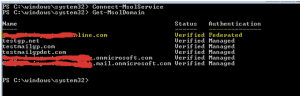
9. Test your Configuration
Open a browser window and navigate to https://portal.microsoftonline.com.
In the User ID field, specify the address of a user that has been synchronized.
Click the Sign in at <your federated domain brand name> link.
When presented with a login form, enter the credentials of the user and click Submit.
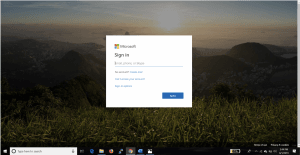
Your browser should be redirected to the Office 365 team portal, and you should be logged in.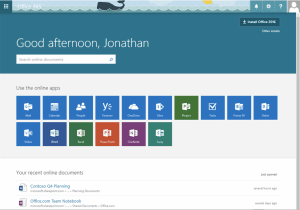
Success! We hope you found this tutorial on integrating PingFederate and PingOne with Microsoft Office365 valuable.