
Guide to Onboarding Identities into SailPoint IdentityNow from Authorization Source
Published October 21, 2024
Insight summary and table of contents
Summary
Onboarding identities is the crucial first step in harnessing the power of any Identity Management platform.
Prerequisites
These items should be done prior to onboarding identities on the SailPoint IDN tenant:
- IDN tenant must be up and running
- The virtual applications that your authoritative source systems are connected to must be up and running
- Identify the authoritative source that you would like to onboard identities from
High-Level Steps

Steps to Onboard the Identities into SailPoint IdentityNow from Authoritative Source.
I. Create a new source in IDN
The details for configuring Role-based Access controls is as follows:
1) Login to SailPoint IdentityNow Tenant.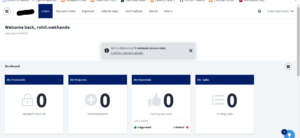
2) Click on admin option from the top menu
3) Once you have successfully authenticated, you will see a dashboard view
4) Navigate to connections → sources
5) You will get this page view. Click on the “create new” button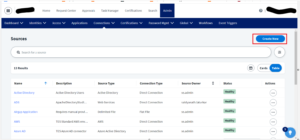
6) Search for the name of the application you would like to assign as the “authoritative source”
7) You will then see a popup page where you must provide connector details, name, etc. Create a new source and follow the below table for configuration options:
| Configuration Name | Configuration Value |
|---|---|
| Source Name | <Name of the Source. Provide a valid name as per your enterprise standards> |
| Description | <Provide a valid description> |
| Source Owner | <Provide the Source Owner Details> |
| Connection Type | <Select the option as “Direct Connector” or “Flat File.” If you have connection with source system, then, select Direct Connector else you can select flat file>. |
| Virtual Appliance Cluster | <Select the Virtual appliance cluster from the dropdown. Make sure you select the correct cluster name which is ACTIVE and in HEALTHY state.> |
| Governance Group (Optional) | <Select the Governance Group. It is an optional setting; hence, you can ignore> |
8) Save the configurations
9) Once the configurations are saves, you will get the source configurations in edit mode to fill in the other details of the form:
a. Basic Configuration → Items such as source name, VA cluster details, descriptions, source owner
b. Connection Settings → Connection parameters for establishing the connection from VA to the source system through the IDN tenant
c. Aggregation Settings → Contains page settings, page limits, etc. These settings depend on the specific connector you are using.
d. Review and Test Connections → The system will provide a source configuration summary, and then will allow you to perform a connection test.
10) After these steps are complete, you should receive a “Test Success” notice. If you receive an error message, one of the above needs to be reviewed.
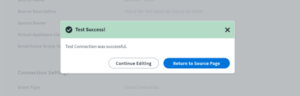
11) Once the text connection for source is “SUCCESS” you need to configure additional details for the source in edit mode.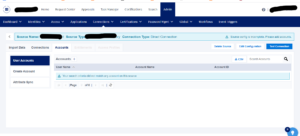
12) Navigate to the import Data tab
13) You will get the page below
14) On this page, configure the following source configurations
a. Correlation Tab → Configure the account correlation rule and manager configuration rule
b. Password Settings → Configure the password policy (if it is in scope for authoritative source)
c. Account Schema → Configure all additional attributes you require from the source
15) Make sure to save your Source Configurations.
16) Once the source configurations are completed, you need to navigate to Identities → Identity Profile.
II. Create a new Identity Profile in IDNOW

1) Navigate to Identities → Identity Profile
Click on “New” to create a new identity profile to map Source to, and then enable Authoritative Source Reconciliation
2) Configure settings inside the “Identity Profile” component
a. Settings Tab → Provide a valid name to the Identity Profile, map the source which you created in the above section named as “Create a new Source in IDN, provide Invitation Options, Sign-In Methods, Password Reset and User UnLock Settings, Password Reset and User UnLock Methods, Strong Authentication Methods. Refer the below Sample Screenshots.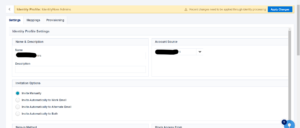
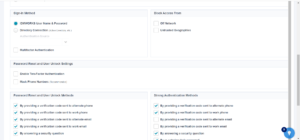
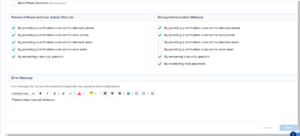
b. Mappings Tab → Map accounts attribute of respective source to the identity profile. Perform the required mappings for all the attributes in scope to be pulled from Authoritative source into IDN. Refer the below screenshot with sample configurations.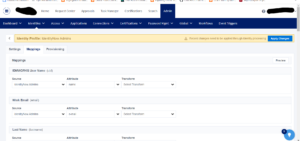
c. Provisioning Tab → Create the new lifecycle states as per the requirements above.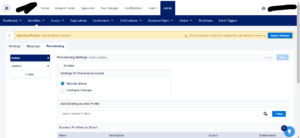
3) Make sure to save your changes.
Note, if you want to perform any custom transformation, you need to create a transformation script in JSON within the tenant using SailPoint IDN REST APIs. Once those scripts are created and uploaded into the IDN tenant, test the script output using “Identity Preview” and validate whether the script is working as expected.
4) Update the mappings in the Identity Profile with the new transformation script and save the configurations.
III. Aggregating Users from the Authoritative Source into IDN
1) Go to admin → connections → source tab
2) You will get the page below
3) Open the source you previously configured when the connection was successfully tested. Navigate to Import data →Account Aggregation tab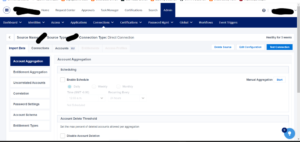
4) Click “start” button against the Manual Aggregation configuration – this will begin the aggregation of users from the respective authoritative source into IDN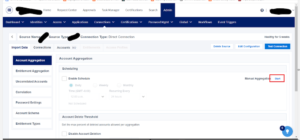
5) The aggregation of Users will start from the respective authoritative source into the SailPoint IdentityNow tenant.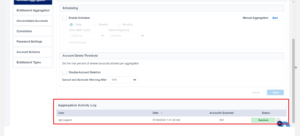
6) Once successfully run, you should receive the following account aggregation summary.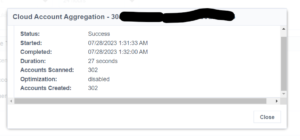
7) The account aggregation will be a SUCCESS into IDNOW.
IV. Validate Identities Onboarded into IDN
1) Go to Admin →Identities → Identities list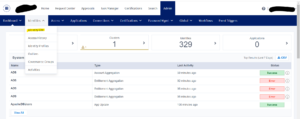
2) You should then receive a page with identity details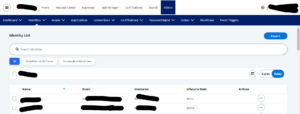
3) When the Identity Details page loads, search for the identity to confirm whether it has been successfully created in the IDN tenant
In Conclusion
The identity onboarding process in SailPoint IdentityNow is unique in its approach. Unlike traditional configurations where a source can be directly set as authoritative, you must first create an identity profile and map a source to it. This multi-step process involves creating and configuring the source, testing its connections, and setting up the Identity Profile with appropriate attribute mapping and lifecycle states. Finally, the aggregation of users completes the onboarding, ensuring a streamlined and effective identity management system.
High-Level Steps Recap:
- Create and Configuration of the source.
- Test the Connections for the source.
- Create and configure the Identity Profile. Perform attribute mappings along with lifecycle states.
- Aggregate the Users.
Detailed document references of SailPoint IDNOW are as follows:
If you have any questions about running this process, please reach out to the IDMWORKS team – we are here to advise and support you through your IAM journey.
Author: Rohit Wekhande, IDMWORKS, Senior IAM Consultant